Change or Add OEM Logo and Information
How can I change or add OEM logo and information on my computer?
By default, the General tab (right-click My Computer, or double-click System in Control Panel, or press the ÿ + BREAK keys on your keyboard) contains information on the Windows version, processor, memory, registered user and registration identity.
Optional items include the manufacturer and model, a small picture, and a button leading to a separate page of support information.
The information is not held in the registry, but in an old-style .INI file, which can be created in any plain-text editor including Windows Notepad.
This file can have two sections:
- The first section, has a section header called [General], and within that section – two entries:
- Manufacturer=<text>
- Model=<text>
- The second section, headed [Support Information], is optional, but if present adds a button with that label to the page. The entries after that heading should be in the form:
- Line1=<some text>
- Line2=<more text>
- Line3=<more text>
and so on. The limit on the number and length of lines seems limited only by the 64 KB general limit on .INI files.
The file should be saved in the %systemroot%system folder (for Windows 98/ME computers) or in %systemroot%system32 folder (for W2K/XP/2003 computers) as OEMINFO.INI.
The picture is a 256-colour-Windows bitmap (.BMP) file.
Microsoft states that the size should be 96 pixels square when using small fonts in Display Property settings, or 120 square with large fonts.
The file should be saved in the %systemroot%system folder (for Windows 98/ME computers) or in %systemroot%system32 folder (for W2K/XP/2003 computers) as OEMLOGO.BMP.
No other entry in the .INI file is required, but the latter must exist and have a populated [General] section for the bitmap to be visible in Display Properties.
No reboot is necessary in order for the hack to take place. Press the ÿ +BREAK keys and see for yourself.
For example, using this OEMINFO.INI file:
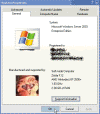
[General] Manufacturer=Self made Computer Model=Zelda K12 [Support Information] Line1=Visit my home page at Line2= Line3=https://petri.com Line4= Line5=For hundreds of tips, tricks, knowledge base articles and much more! Line6= Line7=You can also contact me by using the following e-mail address: Line8= [email protected]
and this OEMLOGO.BMP picture:

have resulted in this effect:
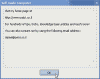
Pressing the Support Information button will show this text:
Related articles
You might also want to read the following related articles:
- Add Logo And Support Information to Vista
- Add Administrative Tools Icon to the Desktop in XP/2003
- Add Command Prompt Here Shortcut to Windows Explorer
- Add Printers and Fax Icon to the Desktop in XP/2003
- Add Scanners and Cameras Icon to the Desktop in XP Pro
- Add Scheduled Tasks Icon to the Desktop in XP/2003
- Add Spell Checking to Internet Explorer
- Customize a New XP Installation
- Customize Command Prompt in Windows XP/2000/2003
- Customize the Places Bar in Office XP
- Delete the Recycle Bin Icon from the Desktop in XP/2003
- Disable Shared Documents Folder in Windows XP
- Microsoft Powertoys Suit
- Quickly Search Active Directory from the Desktop
- Quickly Share Folders from Desktop
- Restore Classic Search in Windows XP
- Send To Notepad Shortcut
- Shell Enhancements and other Tweaks for Windows XP/2000/2003
- Unhide Recycle Bin when Dragging and Dropping Files
Links
Change the Volume Licensing Product Key on a Windows XP SP1-Based Computer – 328874

Renowned as the creator of the acclaimed Petri IT Knowledgebase back in 1999 Daniel Petri has become a distinguished figure in the IT realm, recognized for delivering reliable, expertise-driven content. This website - www.petri.com - not only embodie...